
|
||||||
|
The MusicCast system also allows you to access music that is already stored on your Windows PC (sorry Mac users, this is strictly a Windows feature). Early software releases for the MCX-2000 required that you install the Yamaha DiXim server software on your networked PC. This software catalogs and makes available all of the music stored on the computer. While you can still use this software, the latest release of the MCX-2000 firmware adds support for Windows Media Connect (WMC) to share your PC music with the MusicCast system. Windows Media Connect is freely available from Microsoft's website as long as you have a legitimate copy of Windows XP SP2. From the WMC interface on your PC, you first grant access to the MCX-2000 unit (which appears in the devices tab). Then, in the sharing tab, you select the folders on the PC that you want to share. Finally, in the settings tab, you activate the folder sharing and can also configure WMC to begin upon system startup (thus you don't have to activate sharing every time you turn on your PC). The ability to access content in this manner is a huge benefit to the MusicCast system. As I already have nearly 400 CDs ripped to my hard drive, I would not want to repeat that tedium. The only drawback in terms of using your network-based content on the MusicCast network is that you do not have the ability to search and sort your music as comprehensively as you do with content archived on the MCX-2000. For example, if you choose to browse your network content via artists and you then select and artist, all the tracks are aggregated and sorted in alphabetical order. They are not further subdivided by album (as they are in the archive). The other real issue I had with the content library (which actually also applies to the archived music on the MCX-2000 itself) is that browsing through a large music collection can be a chore. My network music has nearly one thousand albums, and to navigate page by page through it takes way too long. There ought to be some method for directly jumping to the location (for example, to get to tracks starting with 'R', you should be able to jump directly to the R's).
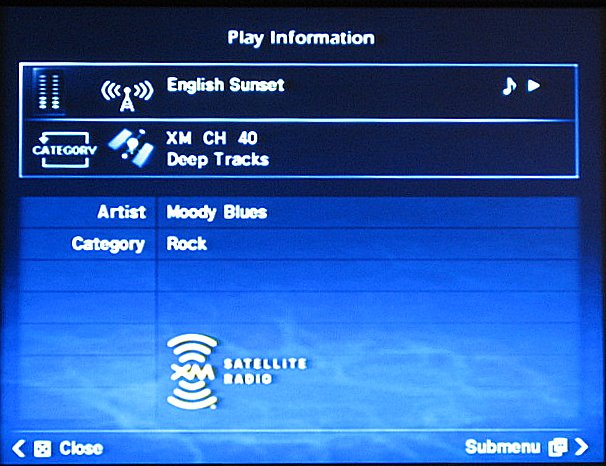
The recording features of the MCX-2000 are quite compelling, and by no means are they limited to recording CDs. The MCX-2000 has both analog stereo and optical digital inputs. You can connect any source to these inputs and record the signal. This content is then available to you in your library. The same goes for the FM radio tuner. The recording system allows you to either manually mark track breaks in the content, or it can automatically add track markers based on a predefined silence length between tracks. Again, you can capture this content directly to the hard drive and organize it into your library. The other component to the recording functionality of the MCX-2000 is the ability to burn CD's of any content you have on the hard drive. As I discussed earlier, it is incredibly easy to build a playlist using bookmarks, and then burn it to CD. It really takes the 1980s art known as the "mix tape" to a whole new level of ease! There are many excellent practical uses for this feature. For instance, if you have an old collection of Grateful Dead tapes, you can plug in your cassette deck and pull all of that content onto the hard drive. If you want to record A Prairie Home Companion off the air and then archive the episodes to CD, you can do that easily as well. Here is where the lack of an AM tuner may be irritating to some people. Most sporting events and many talk shows are broadcast on AM stations. It would have been nice to be able to record these broadcasts for archival or time-shifting purposes as well. Another limitation of the recording function is that you cannot record the XM stations. I am sure this is strictly due to legal issues, but again, it would have been a nice thing to have. Of course, for those of you that don't mind a D/A/D conversion, you could output the RCA jacks from the MCX-2000 right back into the inputs and record your XM that way (you didn't hear it from me though).
|
||||||





 YouTube
 Facebook
 Twitter
 LinkedIn
 Pinterest
 Google+
 Instagram
Magazine Publishing Solutions by
 Advontemedia